
APRIL 2026 PRODUCT RELEASE
This month, the Barndoor team is shipping significant enhancements to how enterprise customers build and manage policies within the Barndoor platform, as well as expanding its MCP integrations. Here’s everything that’s new.
Custom MCP integrations for Microsoft 365
The popular enterprise tools your knowledge workers use every day are now also available to your AI agents. Barndoor’s MCP library now connects to the full Microsoft 365 productivity suite, including Word, Excel, PowerPoint, and OneDrive. This means the documents, spreadsheets, and presentations your team works in every day are part of a governed AI workflow, with the same granular access controls, role-based policies, and real-time enforcement you’d apply to any other integration. This is important because these popular tools probably contain the most sensitive data, requiring security teams to have visibility and guardrails against accidental data leaks.
Barndoor is also adding Granola, Otter, and ClickUp to the MCP library. Now, IT teams can rest assured that the AI being used to assist knowledge workers with capturing meeting notes, action items, and managing projects, are brought into Barndoor’s governance layer.
A smarter way to build and manage agentic policies
Alongside the new MCP integrations, we’ve made significant improvements to how you build and manage access policies inside Barndoor. Through step-by-step guided workflows, you can now draft and test policies, manage your full policy inventory from one view, and trace every allow or deny decision back to the policy that triggered it.
Let’s explore the updated Barndoor access control center.
Policy summary view
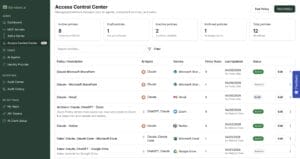
First, let’s start with your command center for all your agentic policies. With more and more knowledge workers adopting multiple AI tools across their workflows, keeping track of active agents, servers, and teams can get complicated pretty quickly. Within this section, you can see every policy in one place, filter by agent, MCP server, or status, and get a picture of your agentic access posture. In addition, see how every allow or deny outcome maps back to a specific, named policy. This way, when a knowledge worker reports an issue, you can diagnose it immediately rather than searching through logs.
Create granular policies
So why should you think granular when creating agentic policies?
You don’t want every knowledge worker or team to have the same level of AI access – the rules governing your sales associates will need to be different from the established rules for your finance executive, even if they’re using the same AI. The good news is you don’t have to rebuild your role distinctions. Barndoor integrates with your existing identity provider, inheriting the groups, roles, and identities you’ve established.
Beyond role-based access, you’ll also want attribute-based rules to govern the content of every tool call. For example, you may want to block AI from posting certain data formats such as social security numbers to Slack or prevent outbound emails to personal addresses via Gmail.
Each team, defined by your IDP, is reflected within Barndoor and gets the access that fits their workflow. As a result, IT maintains clear visibility and control over everything. These levels of granularity are important as you consider your team’s specific workflows and access rules. Barndoor enforces these rules at the gateway level on every single tool call, regardless of which AI client your knowledge workers are using.
Group multiple agents in a single policy
Barndoor recently found that over 58% of knowledge workers say they use at least 2-3 different AI tools for work; 7% use 4-6 tools. As more AI tools are being adopted by more knowledge workers, across more workflows, one-size-fits-all access policies no longer make sense.
The latest release enables you to define a single policy across multiple agents at once. Instead of creating and maintaining separate policies for every AI client your knowledge workers are using, you can consolidate them together – all the external chat clients under one policy; all coding agents under another policy.
Test policies with confidence
Knowing your policies are working the way it’s supposed to for the right user cohort is critical. Before you give Sales broader access to be more productive, you want to be sure the rules for that access are working as expected.
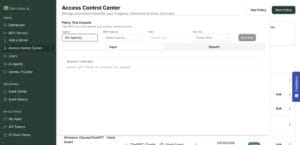
Within the access control center, you can test any active policy directly by running it against your rules to confirm they’re working as they should be. Consider a CISO who just set a new policy and wants to validate it. Traditionally, you would have to test right in the AI agent, meaning you’d connect to the agent, ensure right MCP access, run a call and hope the environment accurately reflects what you’re trying to govern. This is time consuming and introduces variables that make it difficult to confirm and troubleshoot why something isn’t working.
Barndoor solves this by enabling you to test active policies right within the access control center – you select the agent, the tool call, and run it as a specific knowledge worker or identity group and get an immediate allow or deny result.
Manage policies across the lifecycle
As your organization’s AI usage evolves through new tools, more users, more agents, your policy management needs to keep up without disrupting knowledge worker usage.
Organizational policies on the Barndoor platform now move through more defined lifecycles: draft, active, inactive, and archive. As usage evolves, you can adjust without disrupting your knowledge worker users – take something offline temporarily by setting a policy to be inactive. Then, activate it again when ready. Or, archive what’s no longer needed or relevant. There’s no need to build policies from scratch.
Audit history views
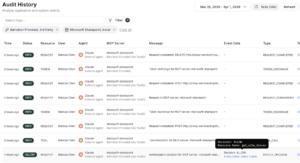
Finally, this is where you ensure your policies are working and see every tool call your knowledge workers have made, as it happens. Each entry shows you who, what, and outcome: which knowledge worker made the call (what she/he asked AI to do), which agent they were using, which MCP server and tool selection, and whether it was allowed or denied.
Token exchanges, resources, tool requests, and policy decisions show up on this page and provide a complete view of the full policy request lifecycle. When a policy decision is logged (allow or deny), the policy name appears directly in the entry as a clickable link. This link takes you to the policy that made the call so you can immediately understand why someone was blocked.
Example policies to get you started
Here are a few example policies as starting points for the kinds of rules you can enforce with Barndoor:
- Block SharePoint site IDs: Restricts AI agent access to specific SharePoint sites, so sensitive internal content remains off-limits for AI
- Block non-corporate emails: Prevents AI from sending outbound emails to personal or external domains via Gmail
- Block external Google Drive sharing: Prevents AI from sharing Google Drive assets externally, reducing the risk of data exposure
Policies map to your existing identity provider, which means they can be scoped from the beginning.
Sign up for a demo
Book a demo or start a free trial to see how the Barndoor platform enables you to establish agent policies